

Lexware MCP Server Documentation
Introduction
The Lexware MCP server exposes Lexware Office capabilities (contacts, invoices, quotations, bookkeeping vouchers and more) as tools via the Model Context Protocol (MCP). It lets AI assistants such as Claude, ChatGPT, Gemini etc. act on your Lexware Office account directly from a chat, without you writing any integration code.
This is a different way of using the same data as the Lexware API: the Public API is for developers who build an integration, while the MCP server lets an AI host call the same capabilities conversationally. The host decides which tool to call and asks you to confirm anything that writes or finalizes data.
What you can do with the Lexware Office MCP server depends on your contract and on the role of the user who sets up the connection. Currently, the MCP server is only available with Lexware Office XL.
The MCP server is reachable at: https://app.lexware.de/mcp
Typical Tasks
Using the Lexware MCP Server you can describe what you want in plain language and the AI assistant carries it out in your Lexware Office account. Typical tasks:
- Look up and manage contacts: find customers and vendors, view their details, create new contacts or update existing ones.
- Maintain your article catalog: search products and services, check prices, create, update or delete articles.
- Create sales documents: draft invoices, quotations, credit notes, delivery notes and order confirmations, either from scratch or as a follow-up to an existing document (e.g. an invoice from a quotation).
- Track the status of documents: check whether a quotation was accepted, which status an invoice has, or whether it has been paid.
- Handle payment reminders: create a dunning for an overdue invoice.
- Record and review bookkeeping vouchers: create and update vouchers (Belege), and search across all sales documents and vouchers by type, status, contact or date range.
- Download documents: fetch invoices, credit notes and other documents as PDF, or invoices as XRechnung XML.
- Look up reference data: retrieve payment conditions, posting categories, print layouts, country tax classifications and your account's profile and enabled features.
- Jump into the web app: get a direct link to a contact, document or recurring invoice template in Lexware Office.
Some areas are read-only, such as down payment invoices and recurring invoice templates. See Available Tools for every tool with its scope and an example prompt, and Known Limitations for what the MCP server cannot do.
Prerequisites
- An active Lexware Office account with the XL contract, which is currently required to use the MCP server.
- An MCP-capable host application, see Client Guides for the supported hosts.
Quickstart
This gets you from nothing to a first successful prompt, using an AI-based chatbot of your choice.
1. Connect
Add the Lexware MCP server to your host, pointing it at: https://app.lexware.de/mcp
Detailed instructions for connectors to the popular major clients can be found here.
2. Authenticate
Your host redirects you to log in with your Lexware Office account (standard OAuth2, see Authentication and Security). You then approve the requested scopes and accept the terms of use (Nutzungsbedingungen) for the Lexware MCP server by ticking the checkbox and clicking Zugriff erlauben. After that, control returns to your host and the connection is ready. The AI tool you connect is operated by a third party, and data returned to it is no longer covered by Lexware's data processing. Be aware of the risks and check the provider's terms of service and privacy policy carefully. See Data Handling for details.
3. Run a First Prompt
Try something like:
Zeige meine 5 neusten Rechnungen.4. Expected Result
Your host recognizes that this requires Lexware data, calls the matching tool (search_vouchers), and replies with a summary of your 5 most recent invoices, their voucher numbers, dates and amounts.
Client Guides
Currently, Claude Desktop and ChatGPT are the supported MCP hosts. Other hosts do not work with the Lexware MCP server yet. The step-by-step guide below walks you through setting up the connection.
Claude Desktop
Add the Lexware MCP server to Claude Desktop as a custom connector.
Install Claude Desktop.
Open the Claude Desktop settings.
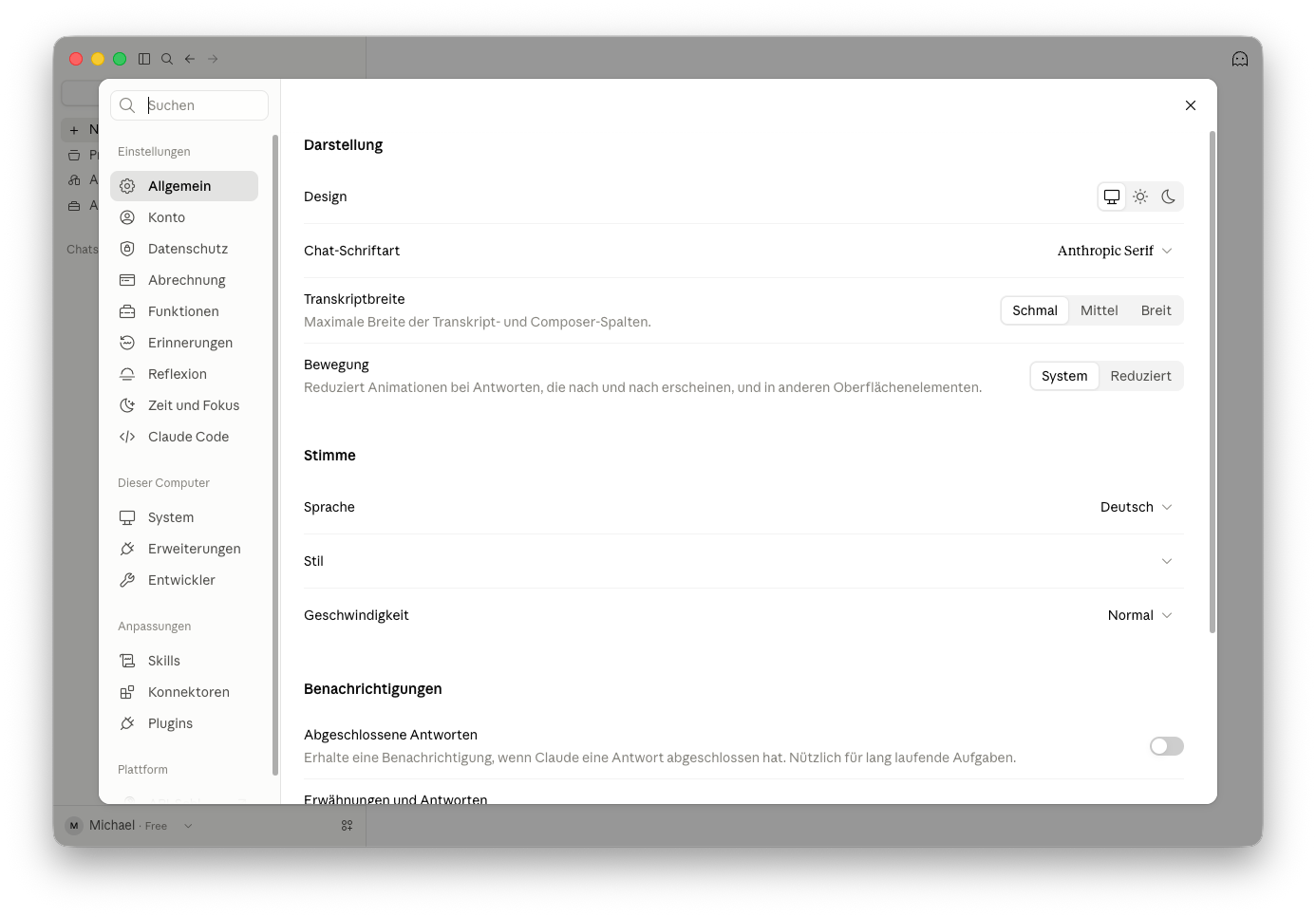
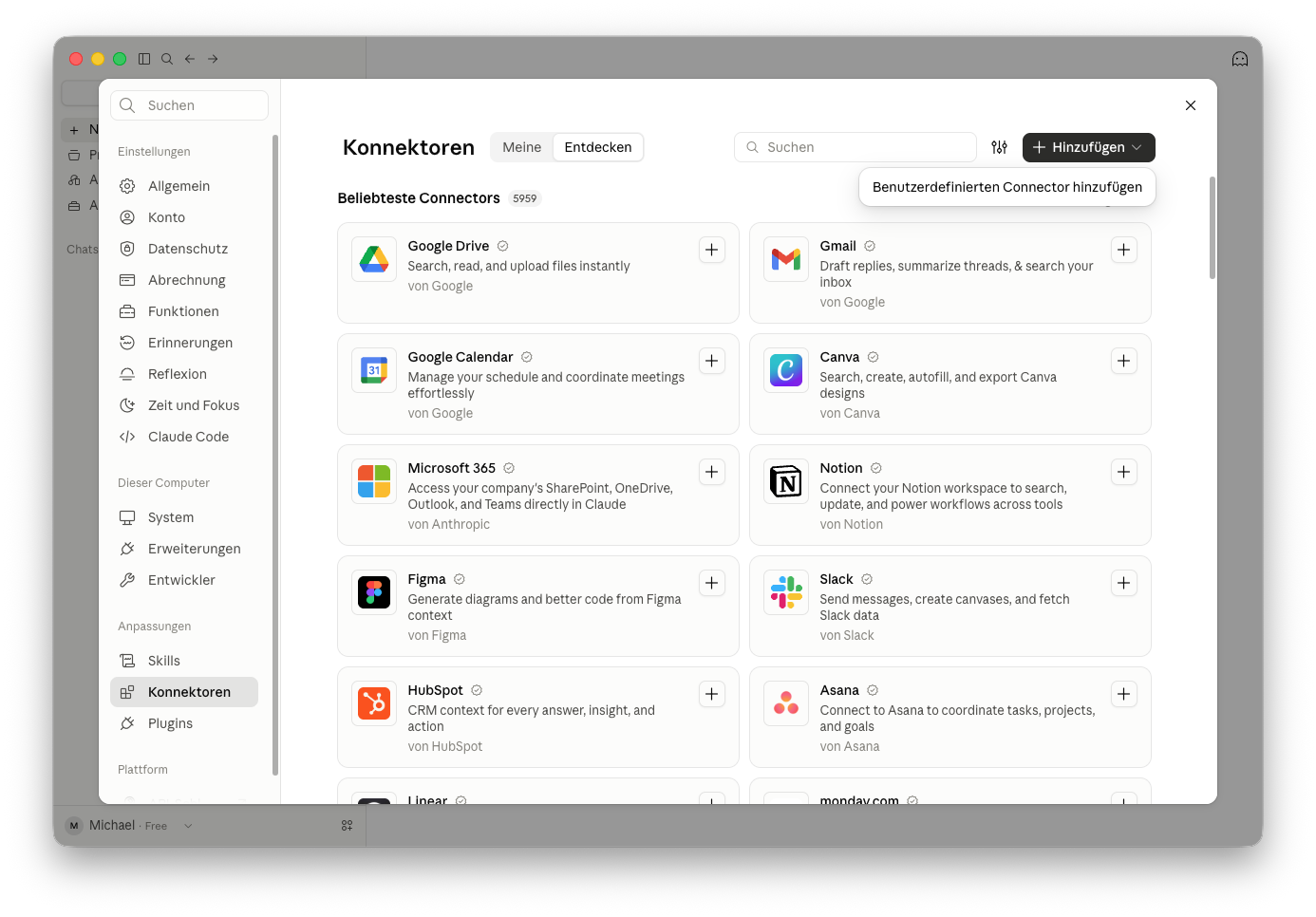
Go to Konnektoren (Connectors), click Hinzufügen (Add) and choose Benutzerdefinierten Connector hinzufügen (Add custom connector).
Enter a name, e.g.
Lexware, andhttps://app.lexware.de/mcpas the MCP server URL, then click Weiter (Next).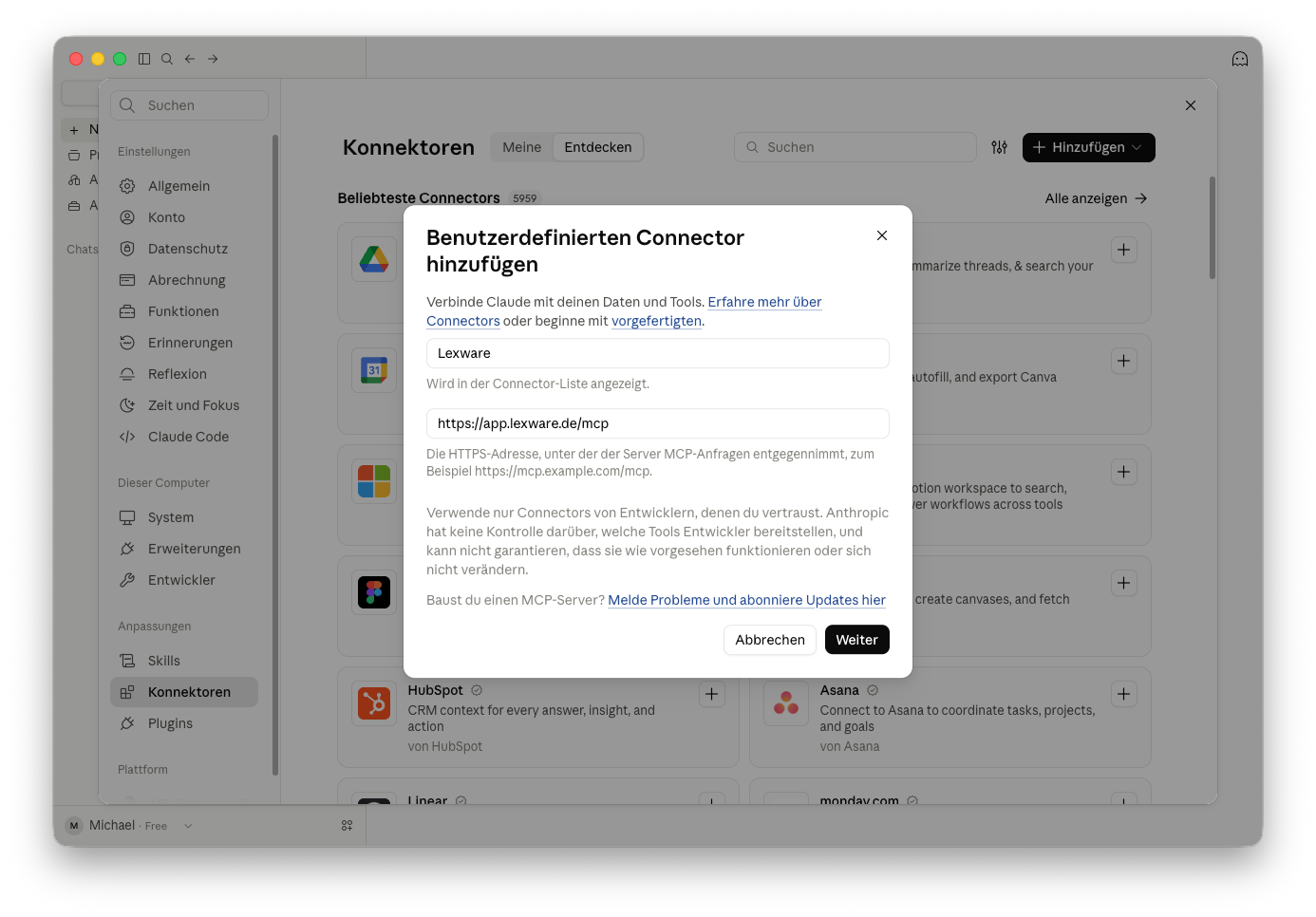
Under OAuth-Client, select Eigenen OAuth-Client verwenden (Use your own OAuth client). Enter
lexware-claudeas the client ID and the client secretpublic-zxPYkqfoQbHgp4tf, then click Hinzufügen (Add).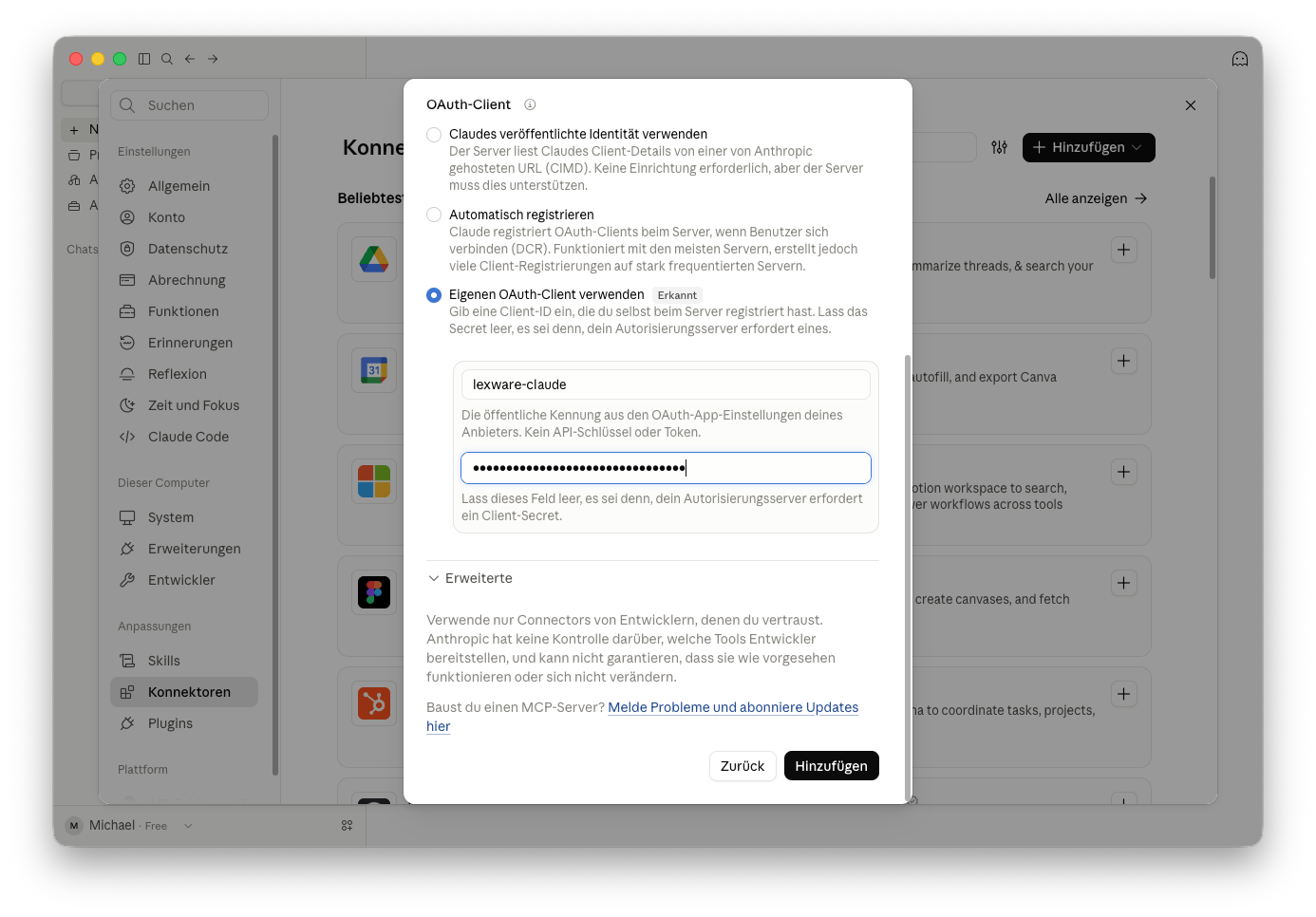
Click Verbinden (Connect) to start the authorization.
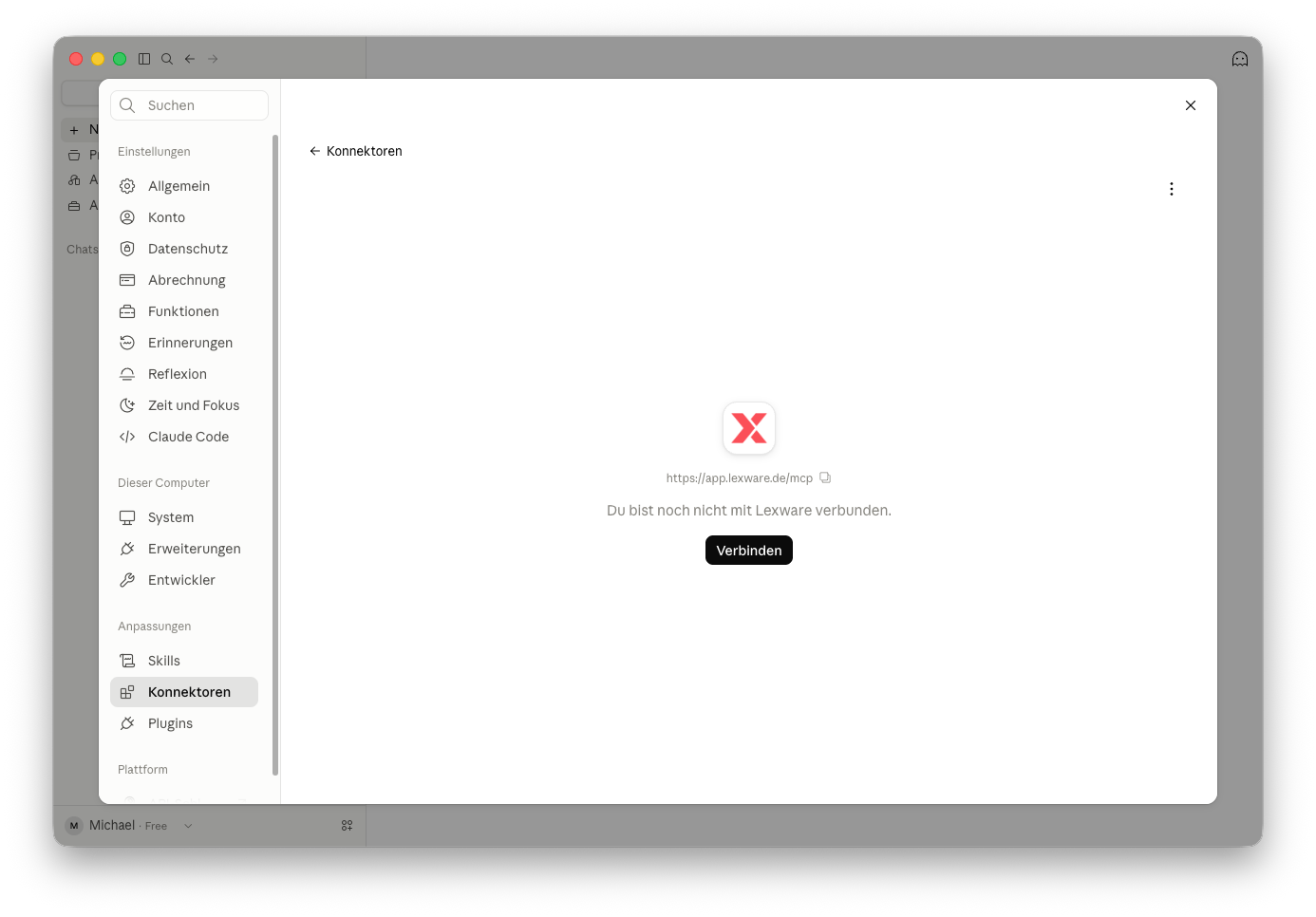
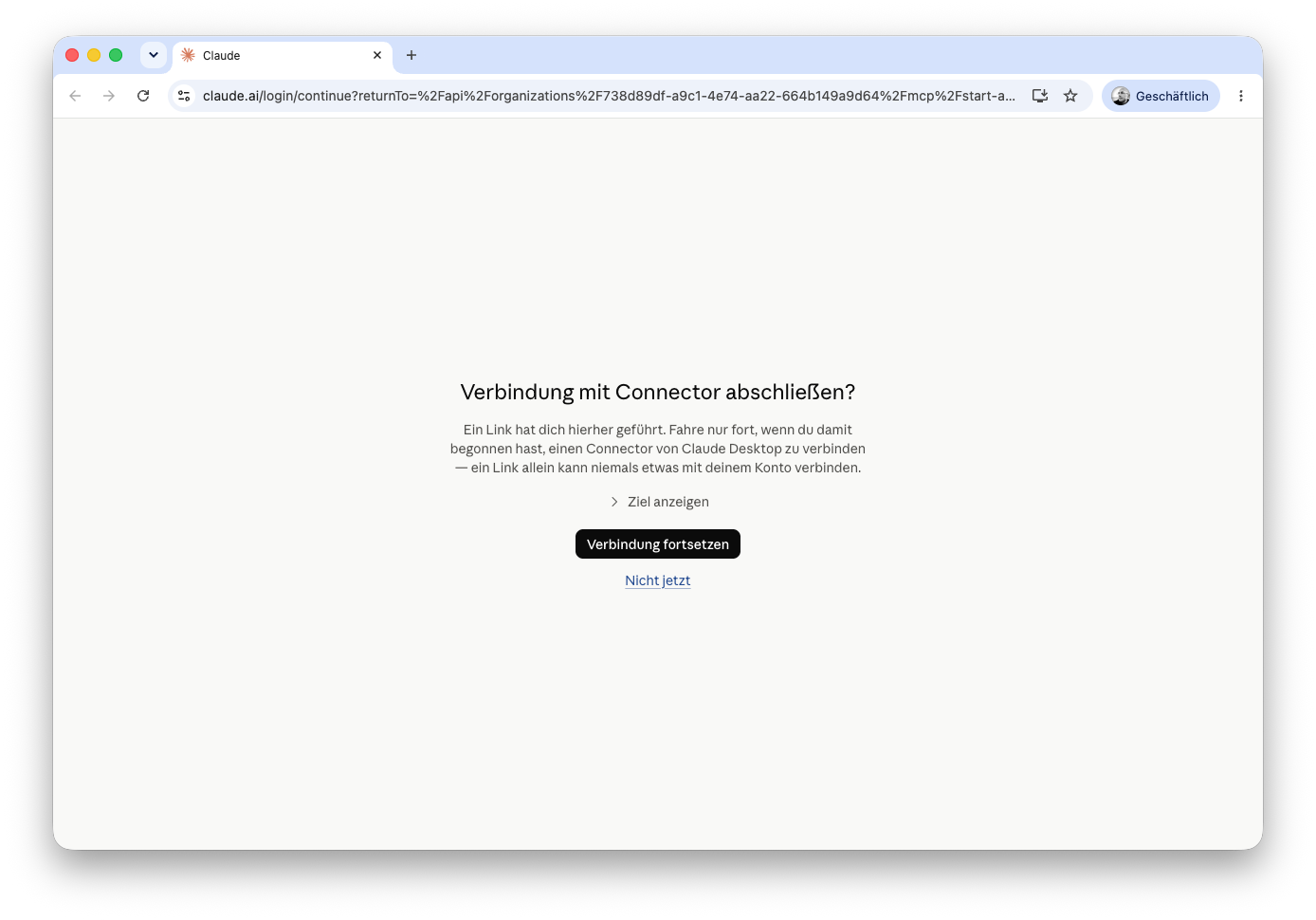
Your browser opens and asks you to confirm the connection. Click Verbindung fortsetzen (Continue connection).
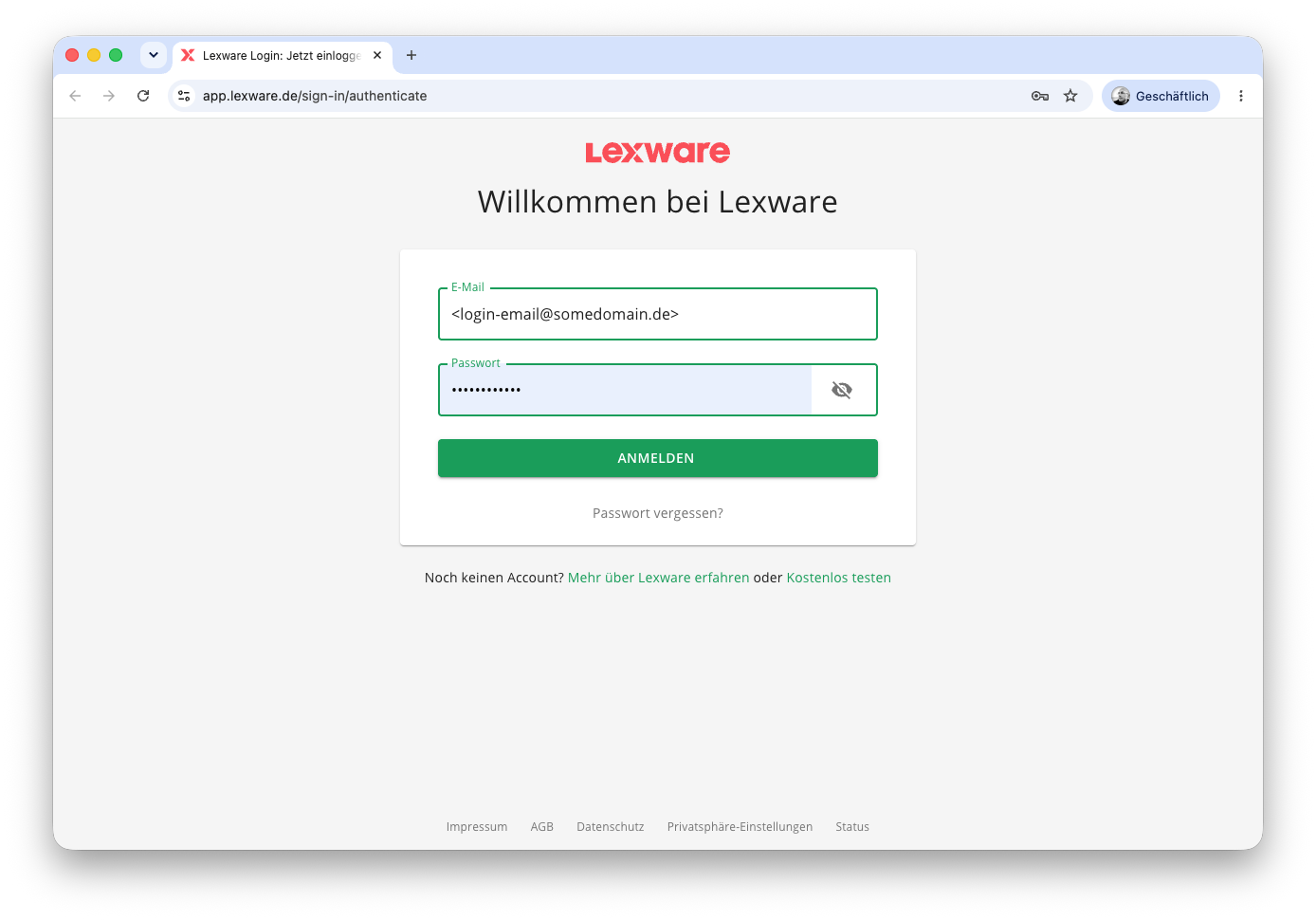
Log in with your Lexware Office account.
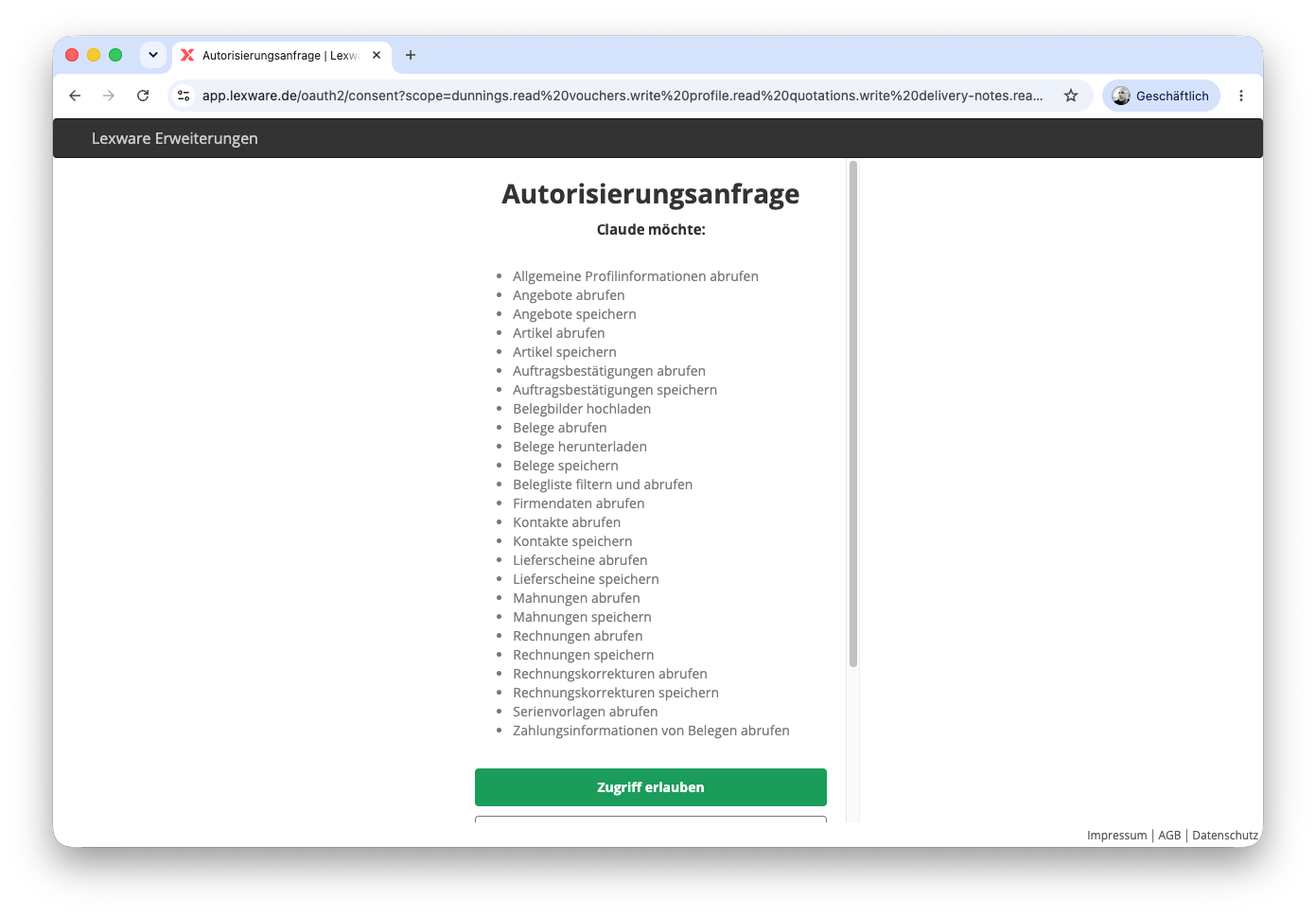
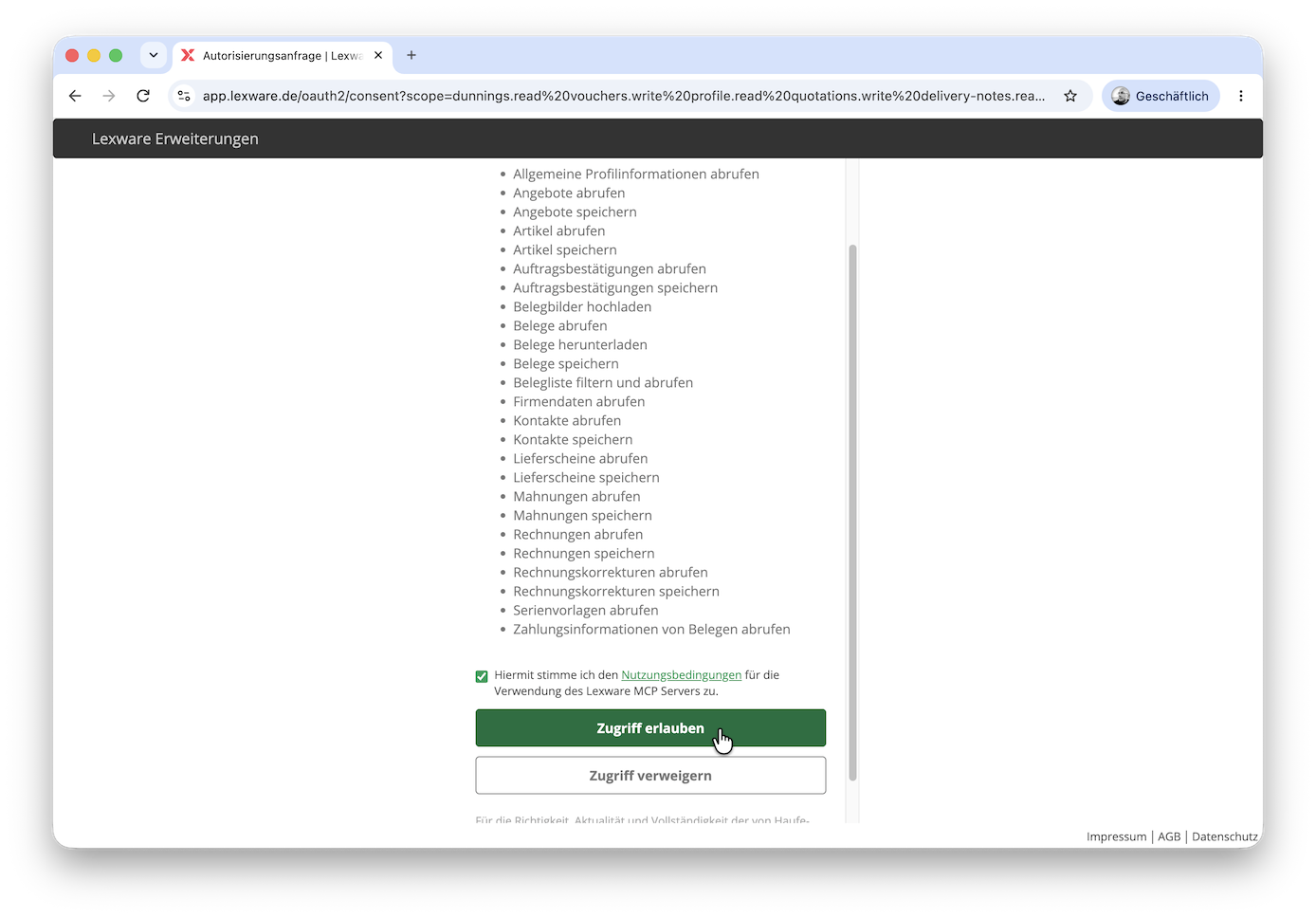
Review the requested scopes and click Zugriff erlauben (Allow access). You also need to accept the terms of use (Nutzungsbedingungen) for the Lexware MCP Server.
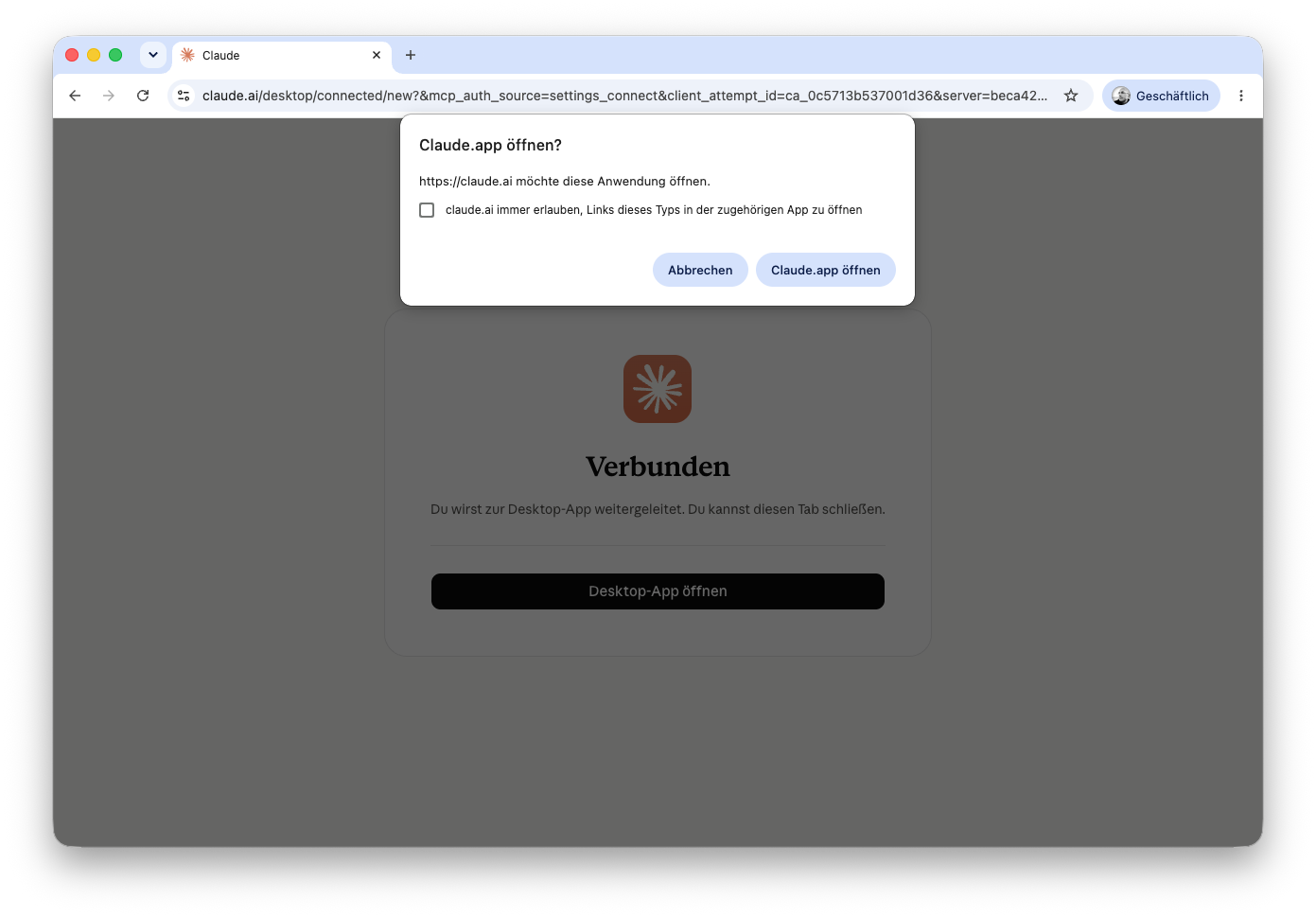
Your browser reports that the connection is established and asks to open Claude. Click Claude.app öffnen (Open Claude.app).
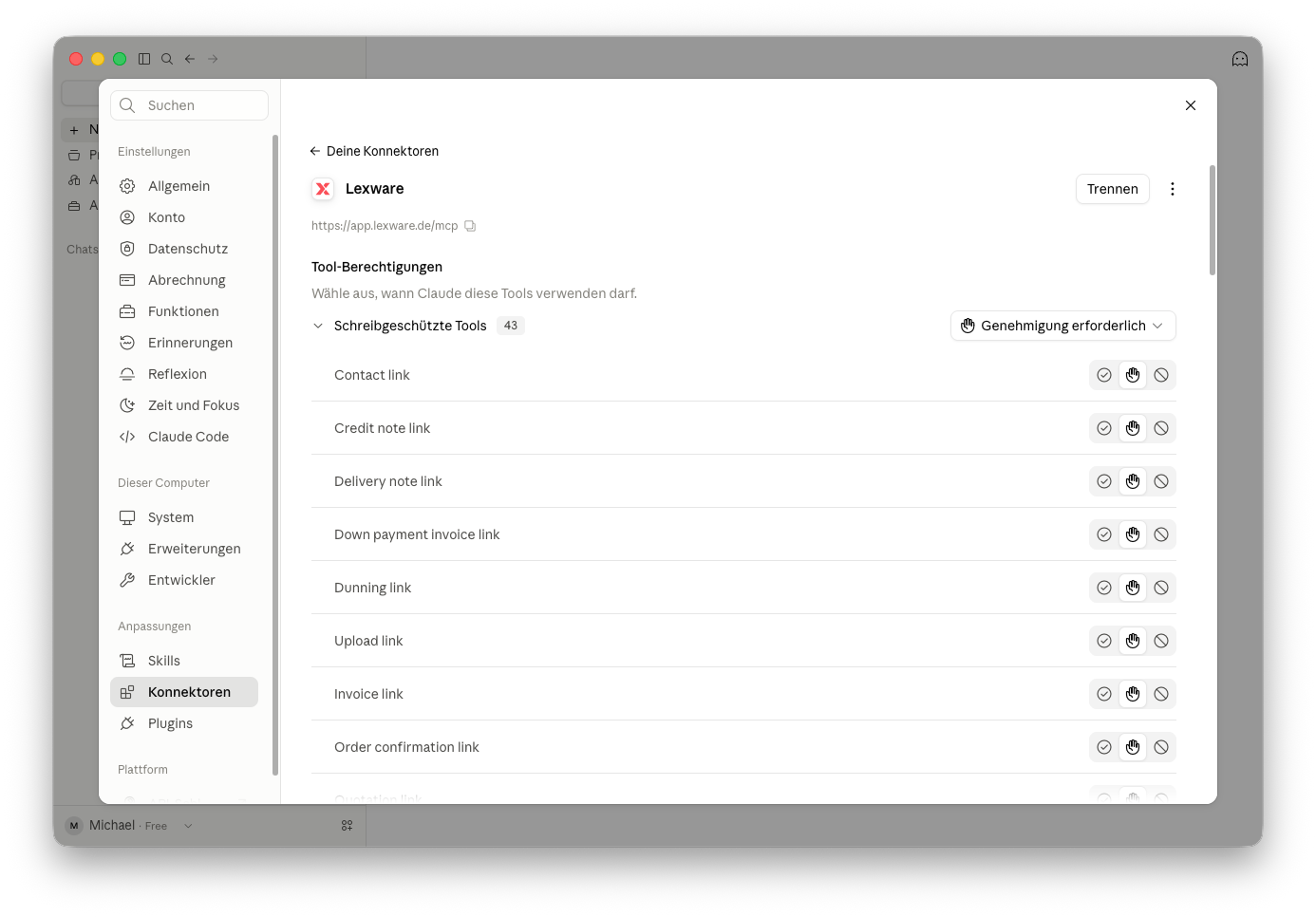
Back in Claude Desktop, the connector shows the available Lexware tools. By default, Genehmigung erforderlich (Approval required) is set, so Claude asks for your permission before using them.
Start a chat and ask something that needs your Lexware data, e.g.
Zeige meine offenen Rechnungen.
For connection issues, see Troubleshooting & FAQ.
ChatGPT
Add the Lexware MCP server to ChatGPT as a custom MCP server plugin.
Open ChatGPT in your browser and log in.
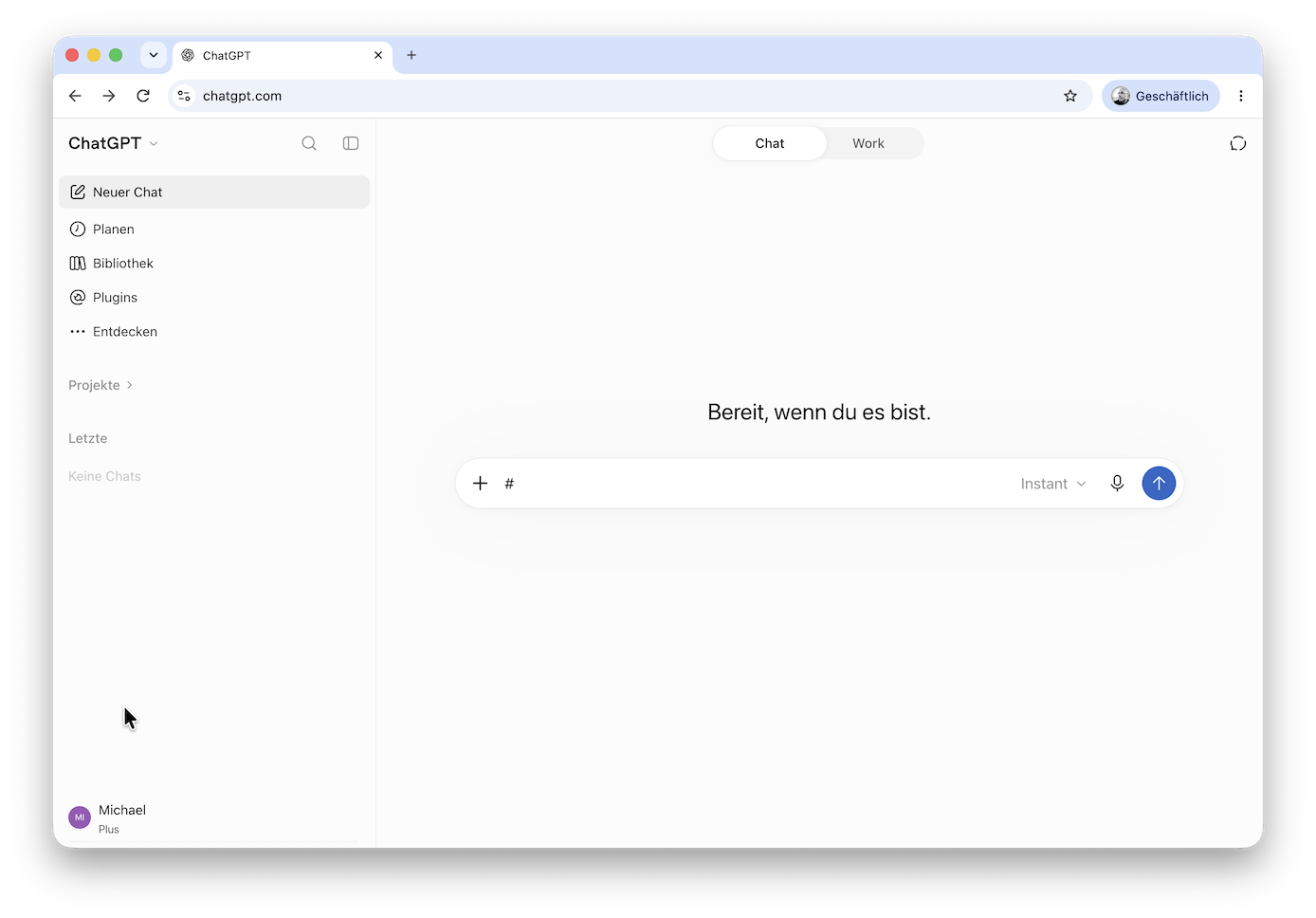
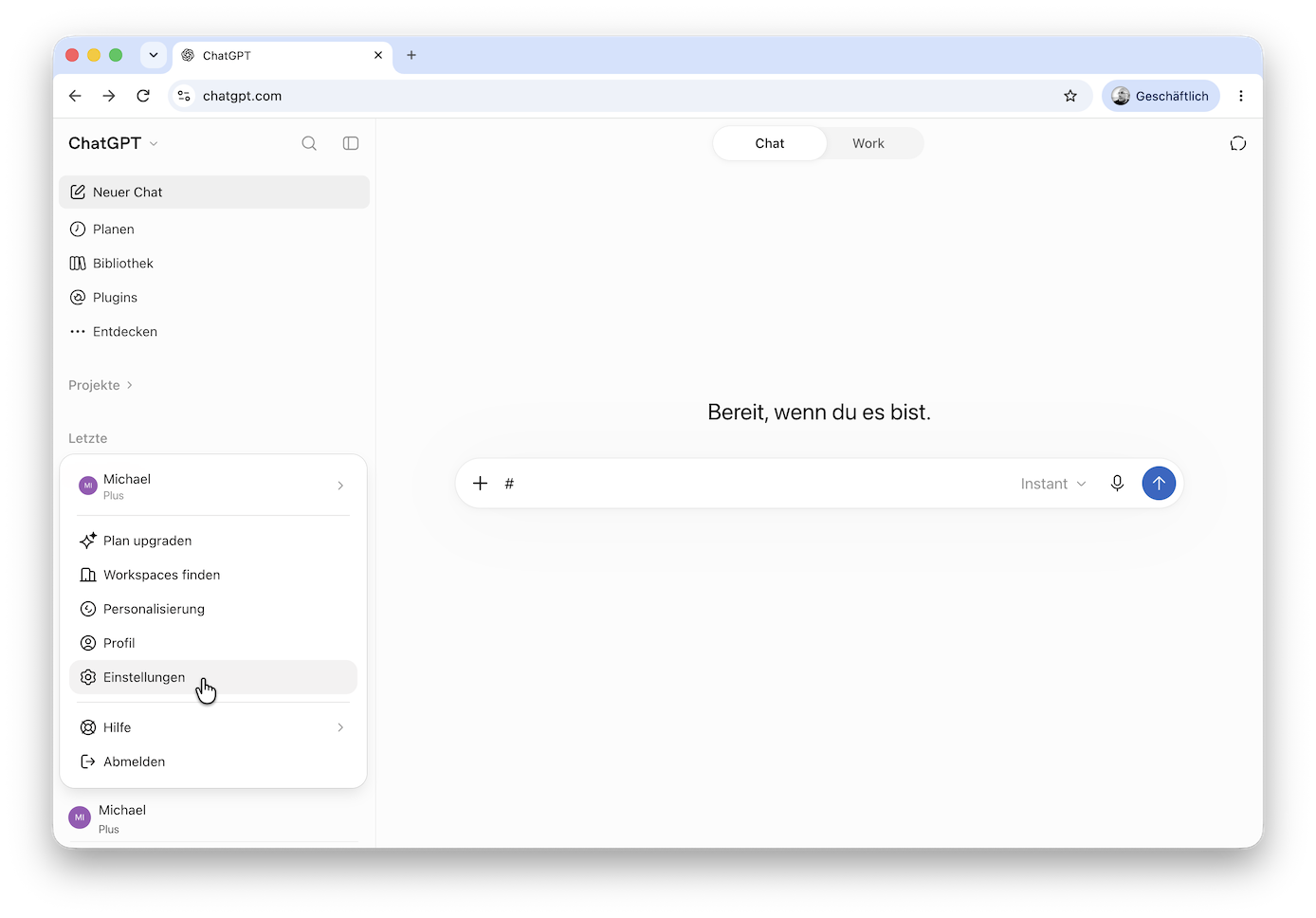
Click your profile at the bottom left and choose Einstellungen (Settings).
Under Integrationen (Integrations), click Plugins.
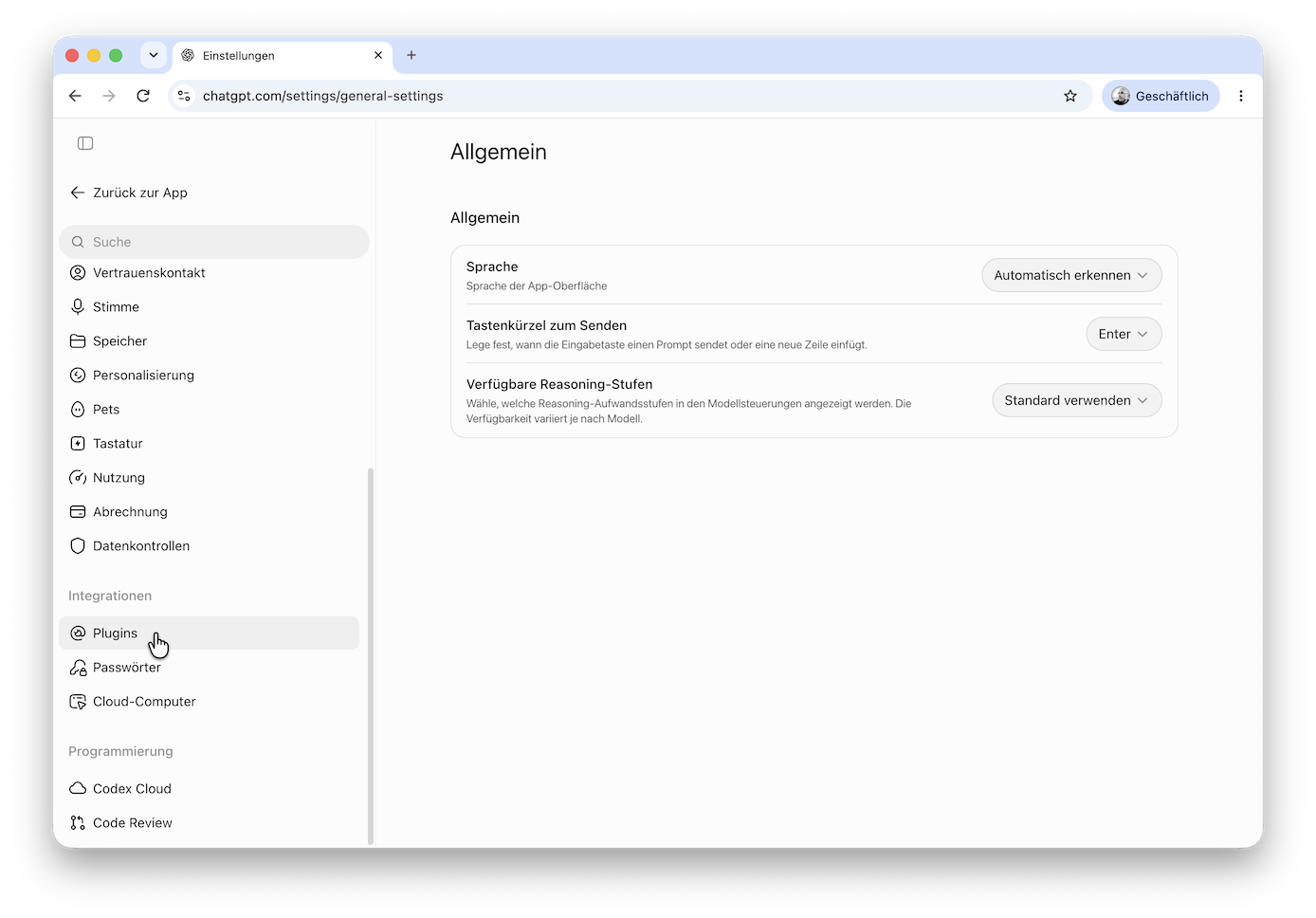
Click Katalog durchsuchen (Browse catalog).
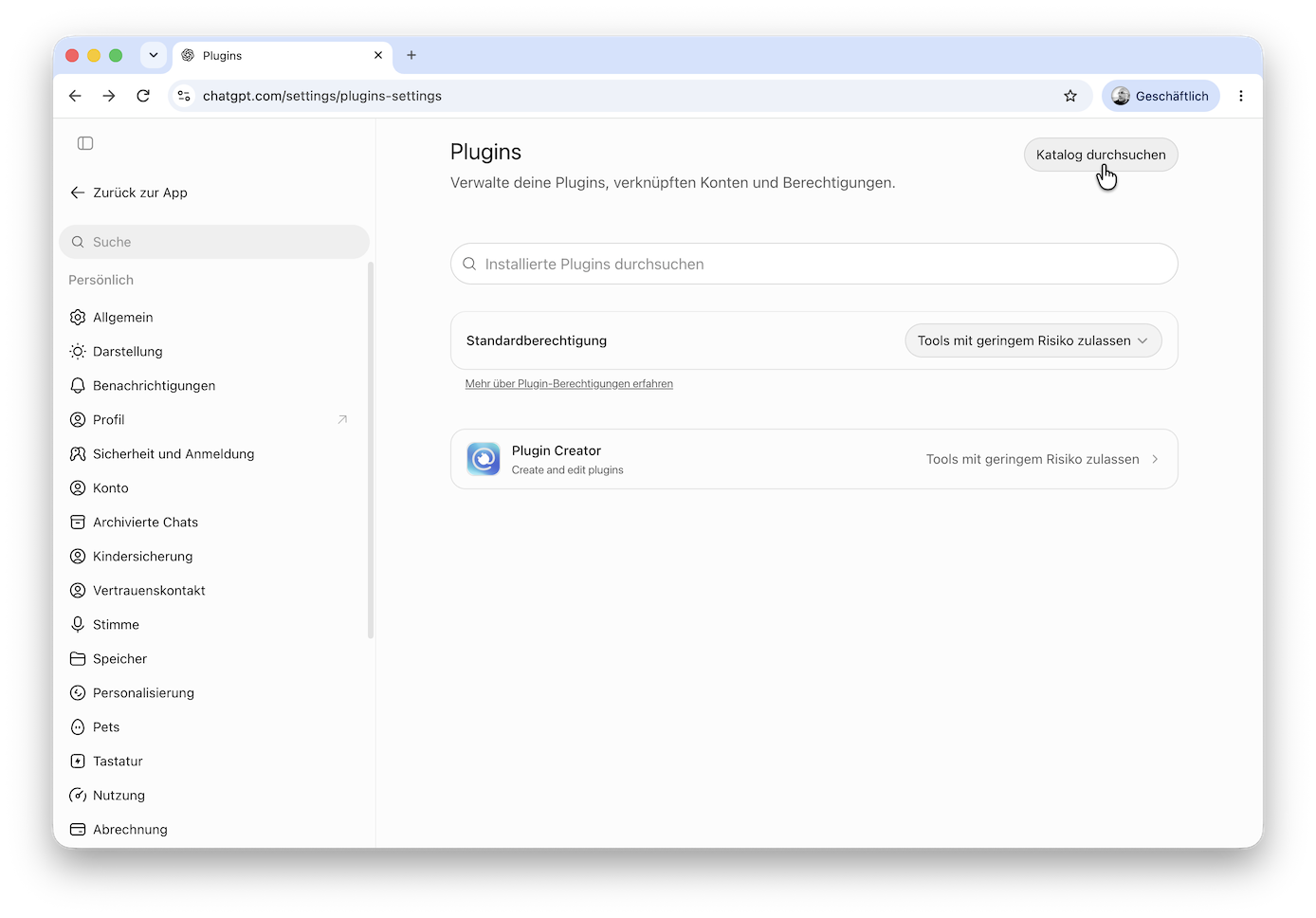
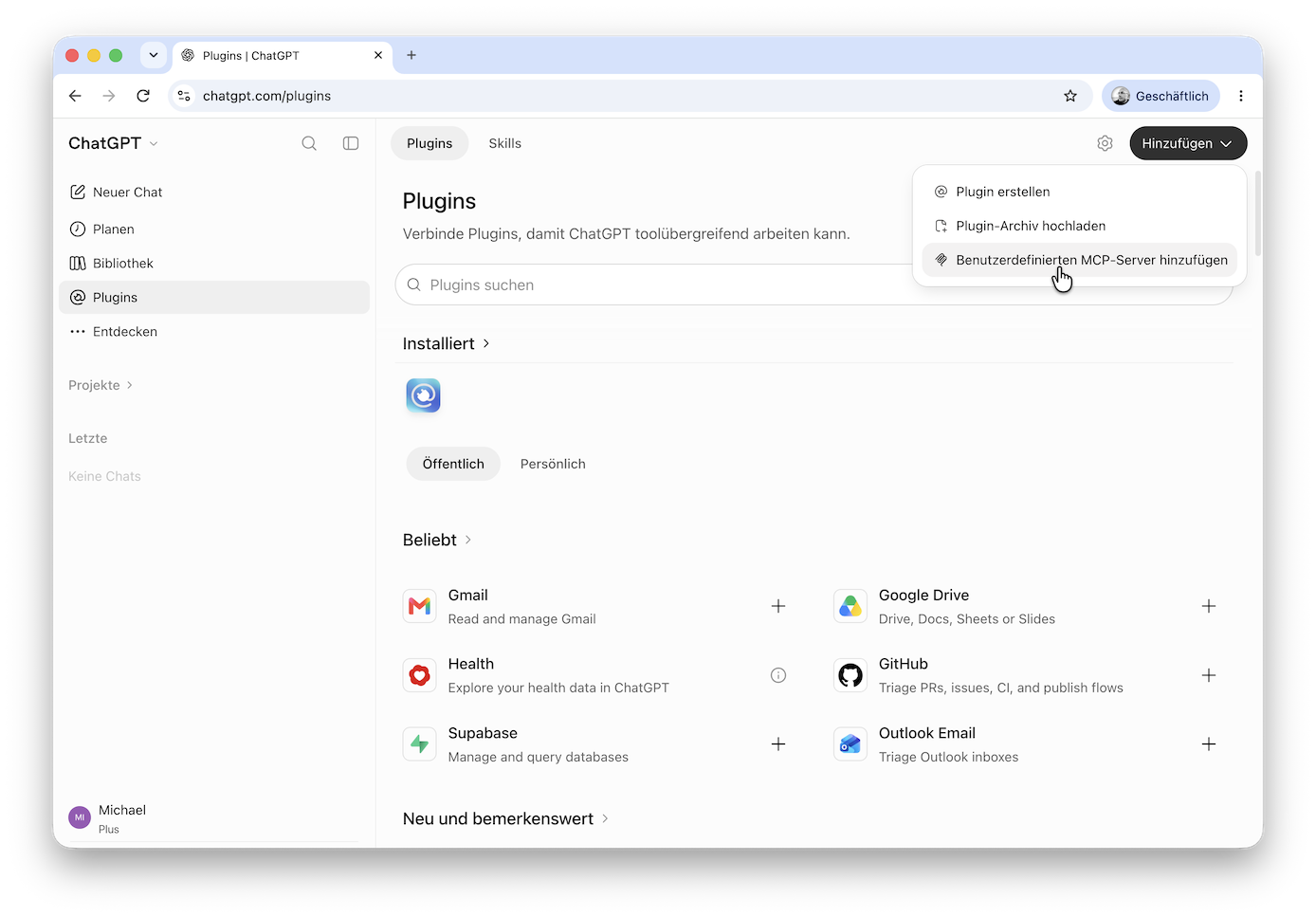
Click Hinzufügen (Add) and choose Benutzerdefinierten MCP-Server hinzufügen (Add custom MCP server).
Enter a name, e.g.
Lexware, andhttps://app.lexware.de/mcpas the Server-URL. Select OAuth as the Authentifizierung (Authentication), then open Erweiterte OAuth-Einstellungen (Advanced OAuth settings).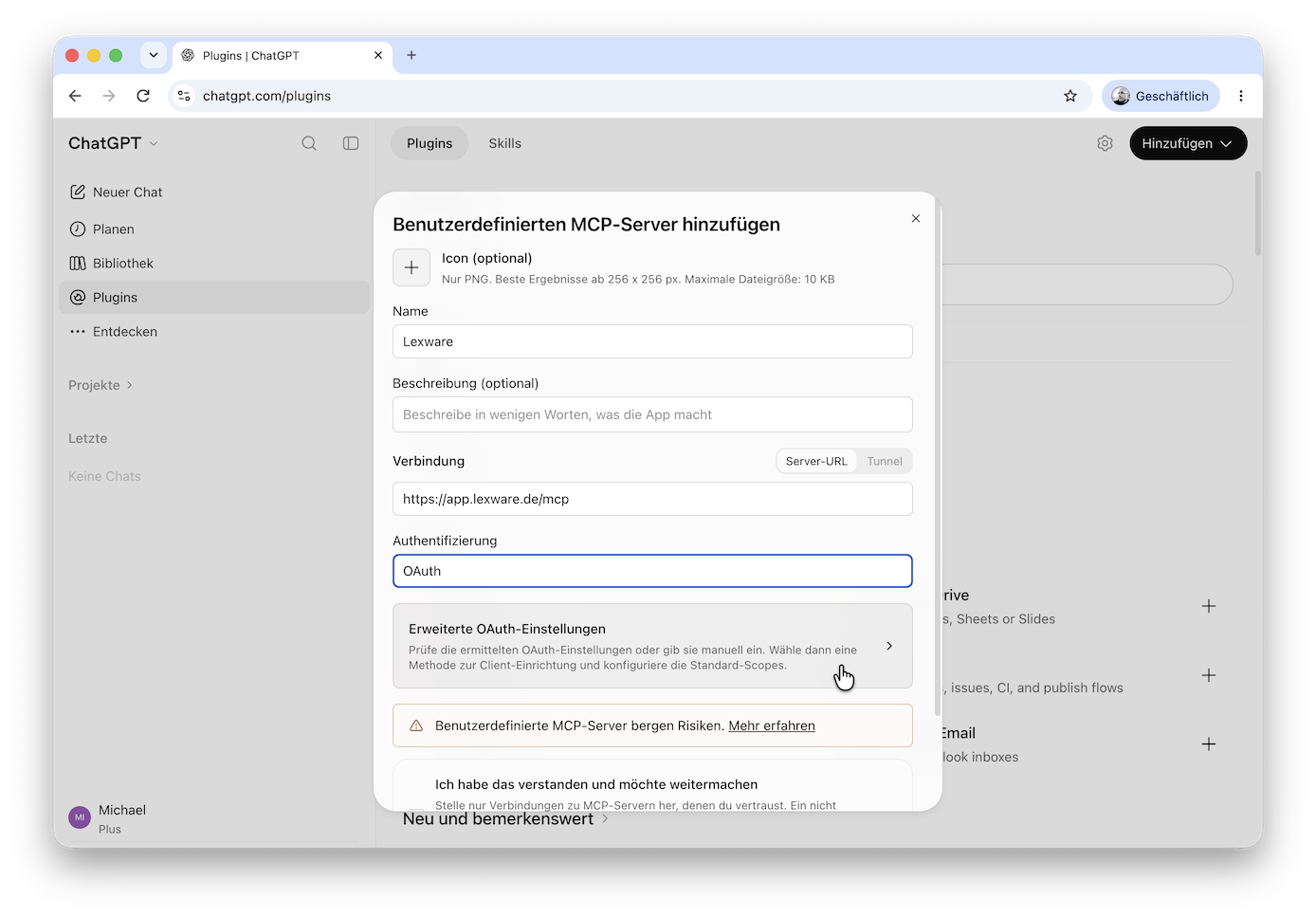
Enter
lexware-chatgptas the OAuth-Client-ID and the client secretpublic-ZvKkI9Homkj5hHU7as the Geheimer OAuth-Clientschlüssel. For the Authentifizierungsmethode für den Token-Endpunkt (Authentication method for the token endpoint), selectclient_secret_post.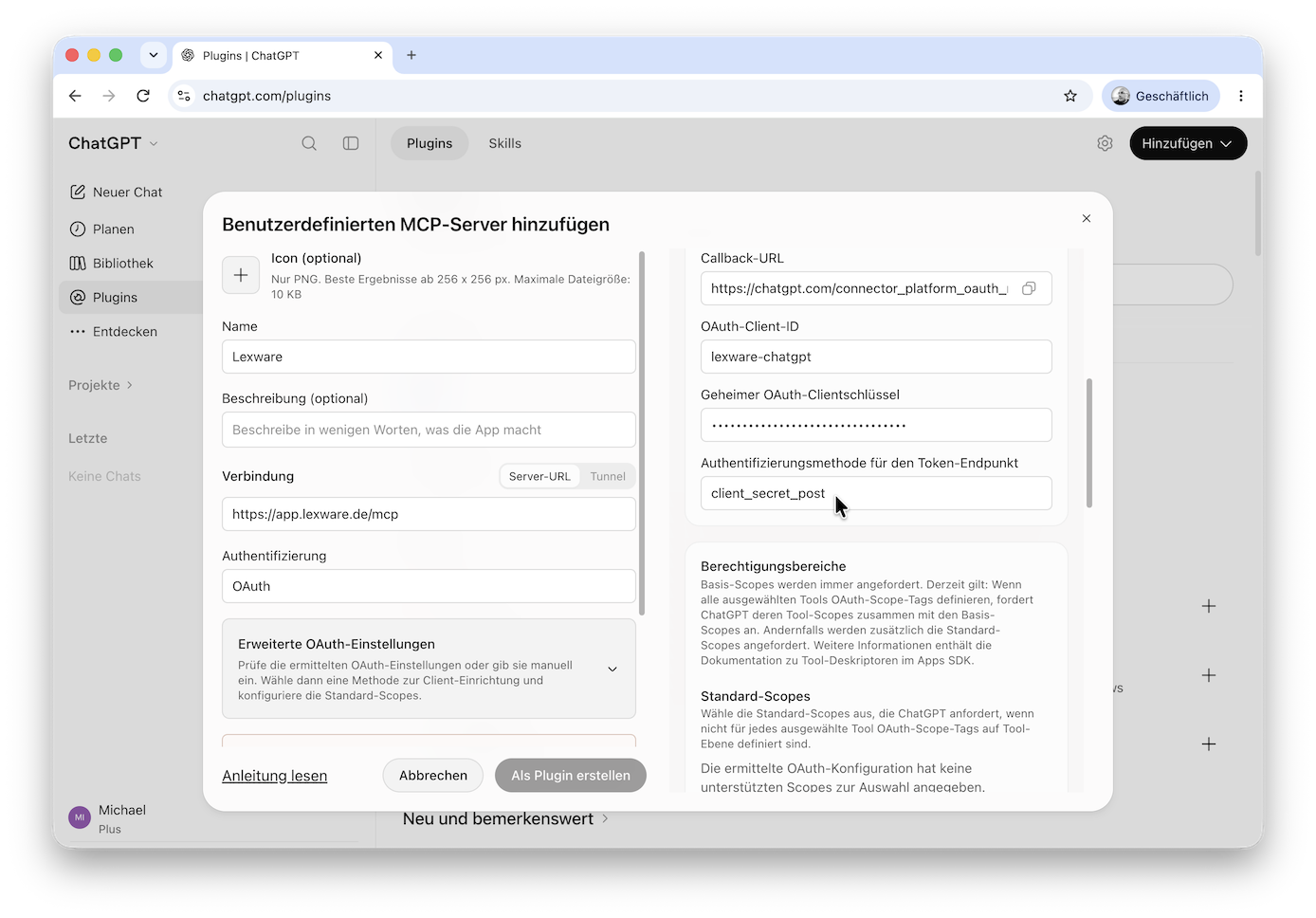
Check that the Ressource (Resource) is
https://app.lexware.de/mcpand uncheck OIDC aktiviert (OIDC enabled), which is checked by default.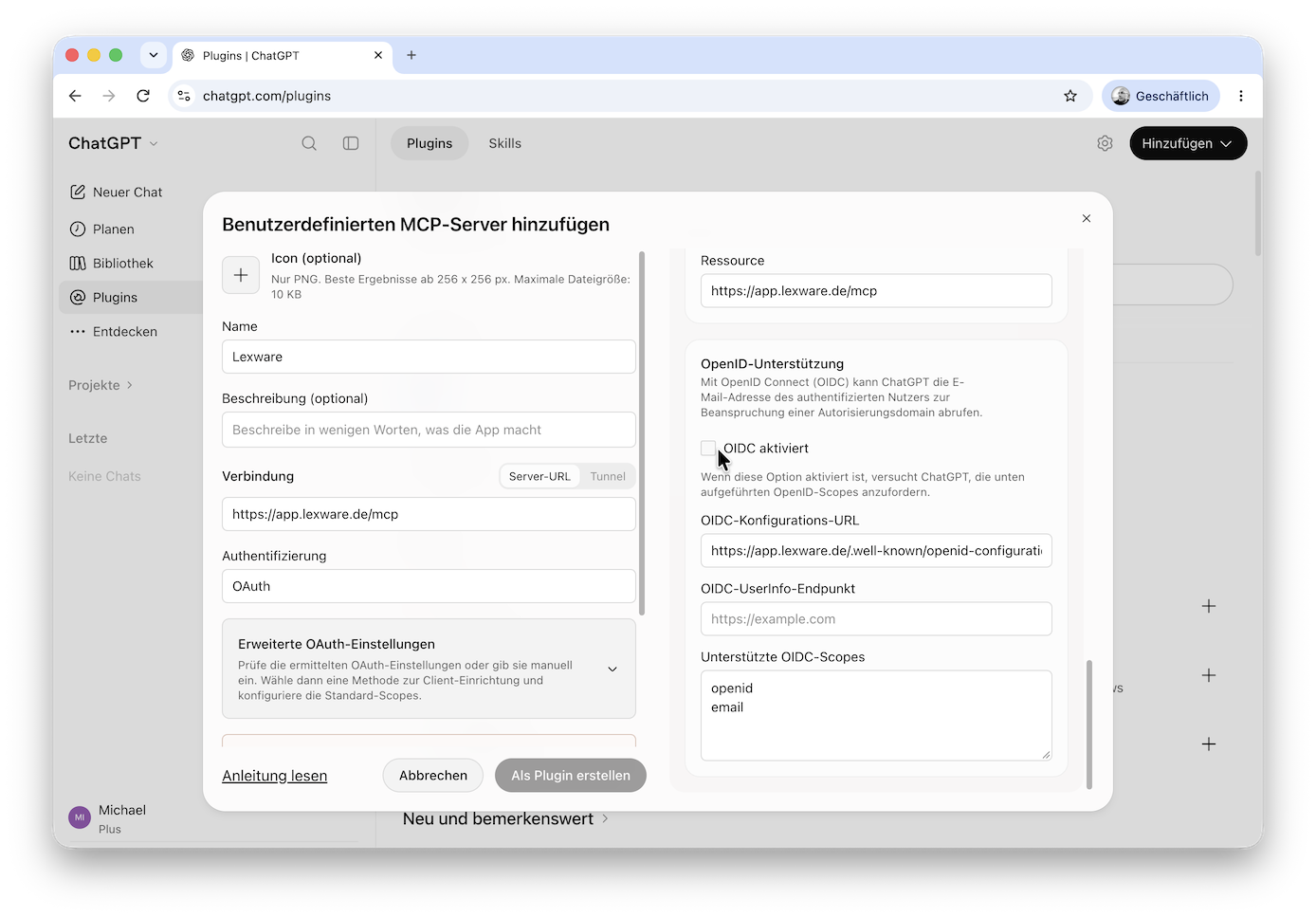
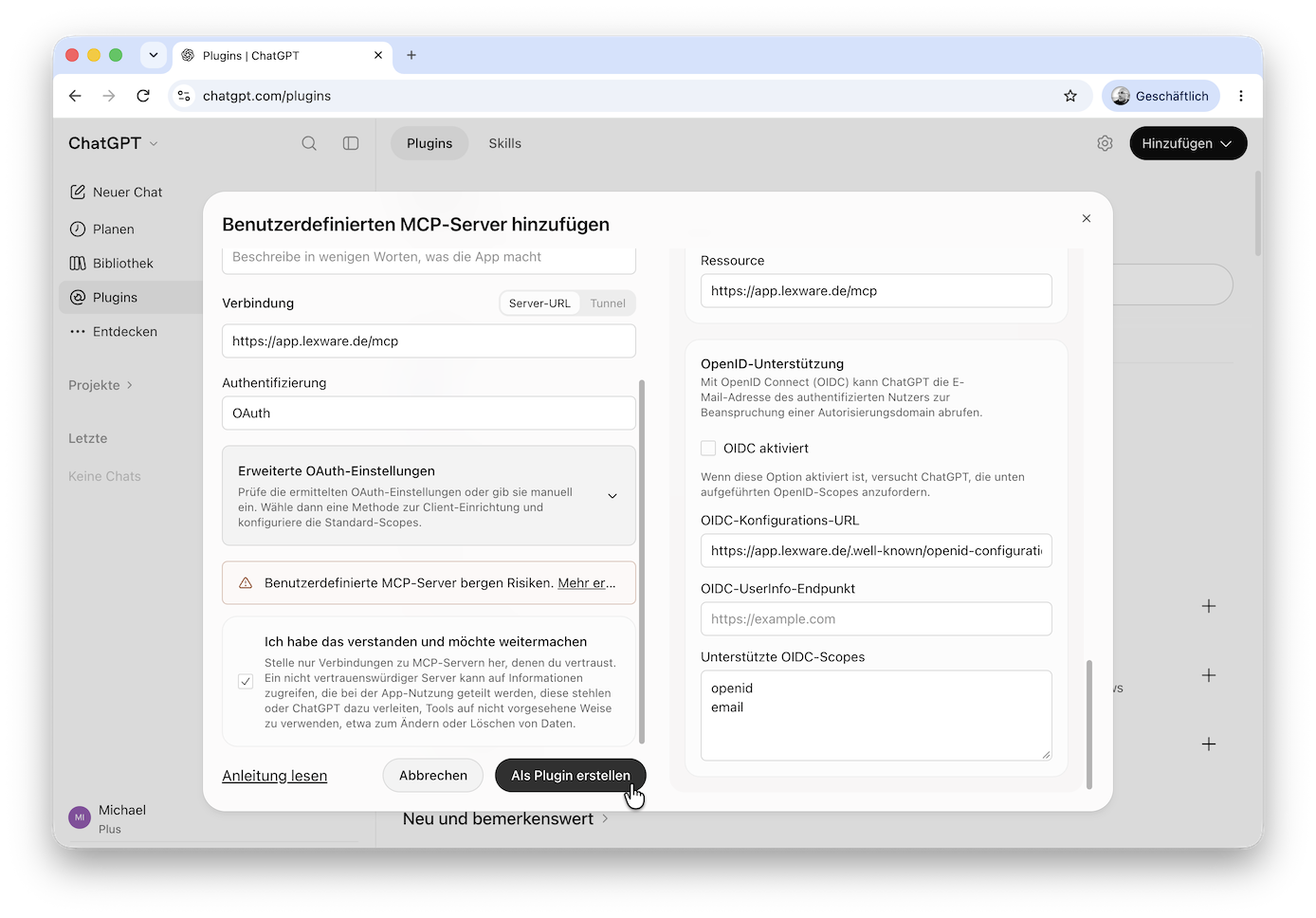
Tick Ich habe das verstanden und möchte weitermachen (I understand and want to continue) and click Als Plugin erstellen (Create as plugin). This can take a few seconds.
Click Lexware verbinden (Connect Lexware) to start the authorization.
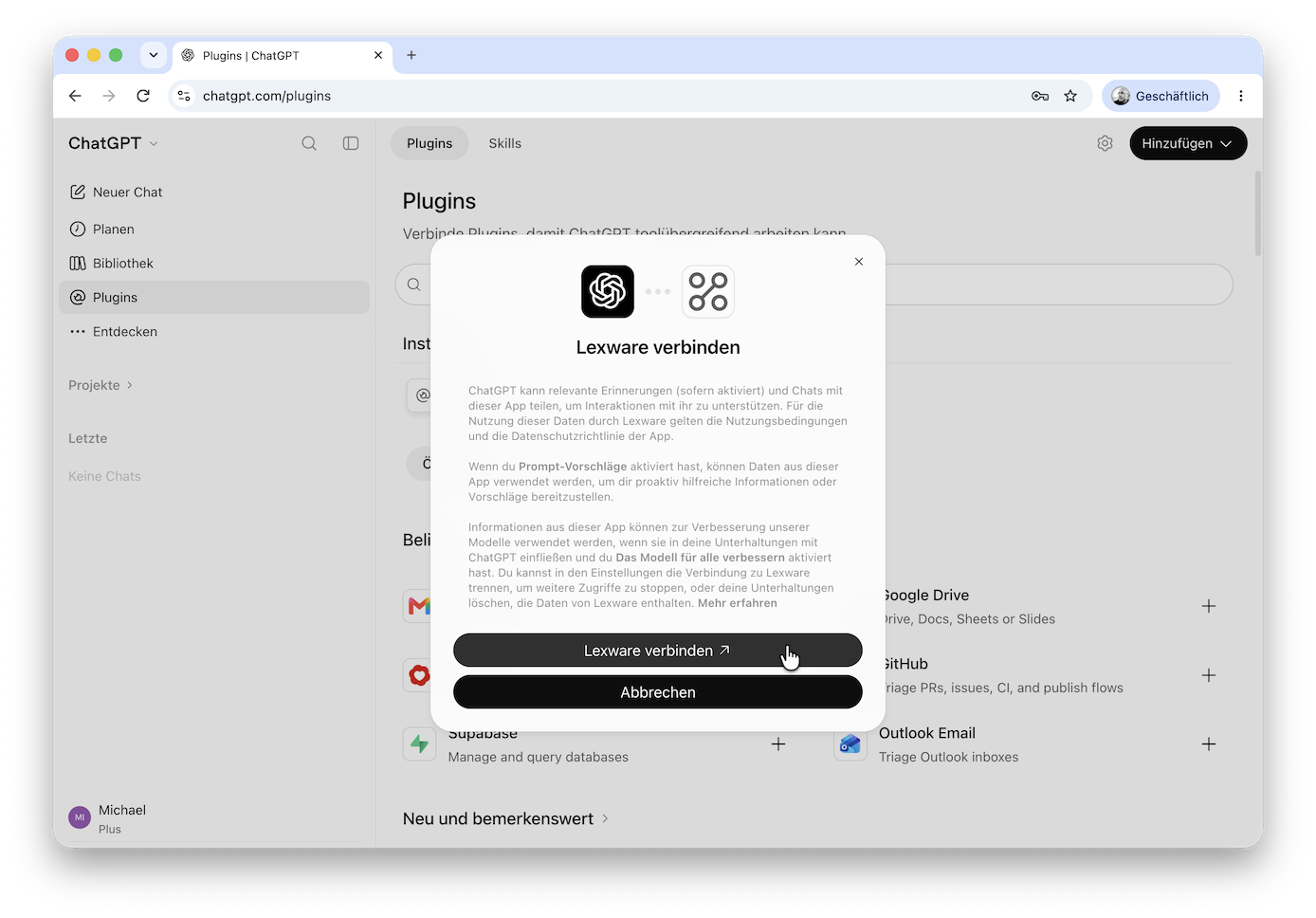
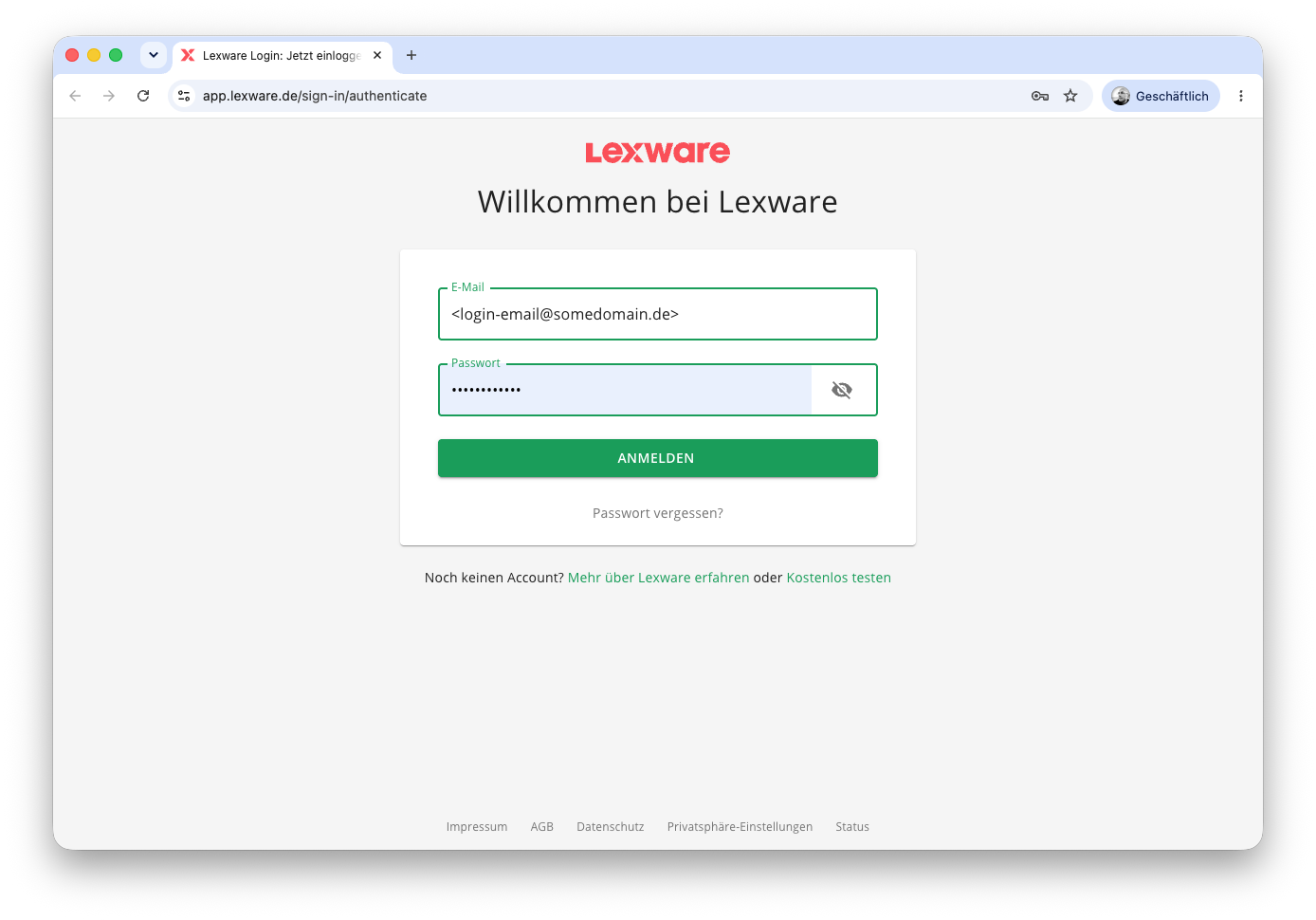
Your browser opens the Lexware login. Log in with your Lexware Office account.
Review the requested scopes, accept the terms of use (Nutzungsbedingungen) for the Lexware MCP Server and click Zugriff erlauben (Allow access).
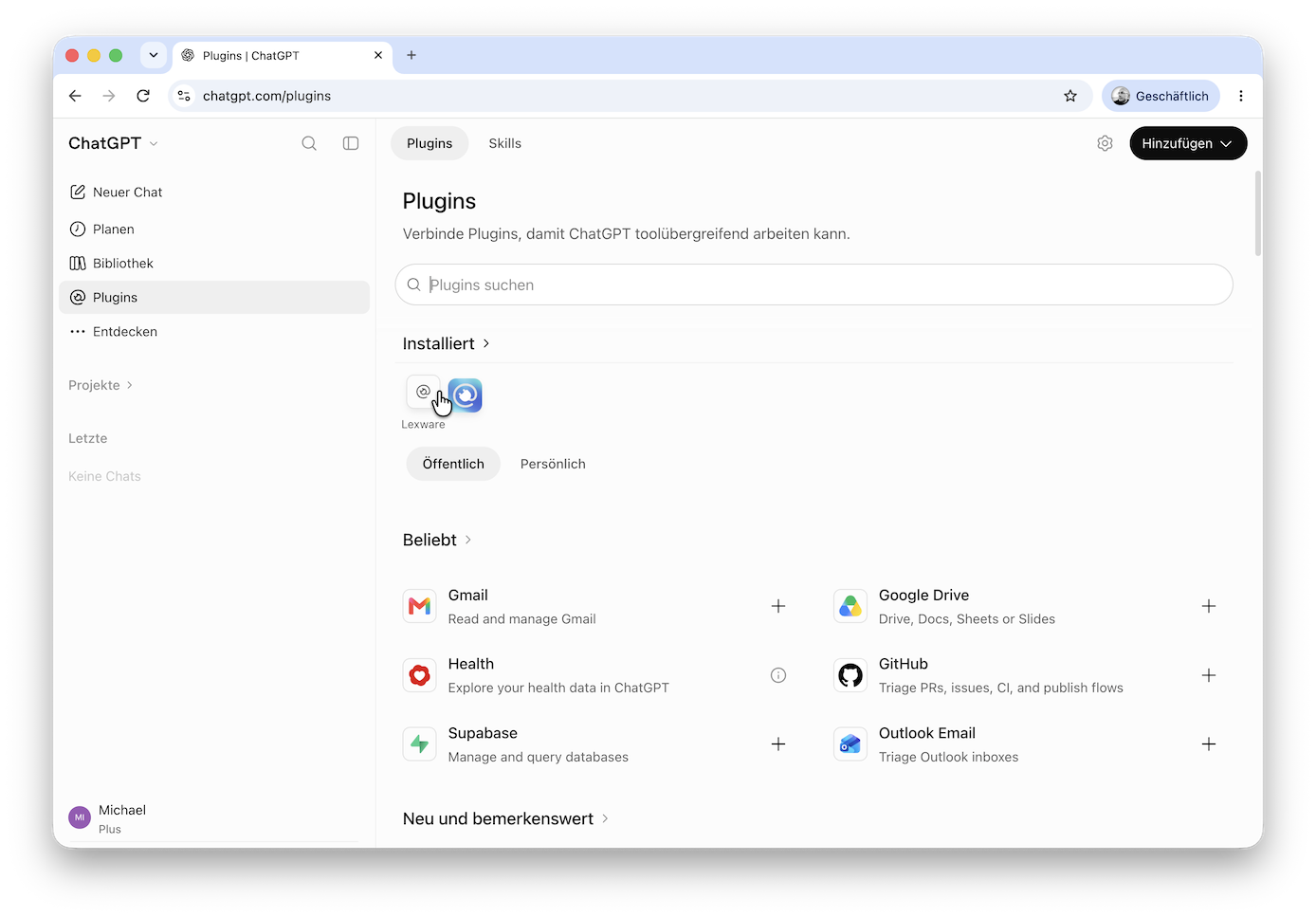
Back in ChatGPT, Lexware is listed under Installiert (Installed).
Start a chat, select the plugin by typing
@Lexwareand ask something that needs your Lexware data, e.g.Zeige meine offenen Rechnungen.
If you also use the ChatGPT desktop app, you can check there that the plugin is active.
For connection issues, see Troubleshooting & FAQ.
Available Tools
Below you find all available tools of the Lexware MCP server. Each tool is marked Read (safe, read-only) or Write (creates or changes data). Where a write action finalizes a document, the host application is expected to confirm with the user before the model calls it.
Each tool lists the OAuth scope it needs, together with the German message you see when approving the connection (see Authentication and Security). Reading and writing are separate scopes, so a tool marked Write needs the matching .write scope. With the Lexware Office XL contract, all required scopes and features are included, so you do not need to select or configure anything yourself.
Each tool description comes with an example prompt. Use the copy icon of the prompt to paste it straight into your MCP client and adapt it to your data.
Articles
| Tool | What it does | Example Prompt |
|---|---|---|
list_articlesRead |
Search the product/service article catalog, filterable by article number, GTIN or type (PRODUCT/SERVICE). Scope: articles.read ('Artikel abrufen'). |
|
get_articleRead |
Get a single catalog article by id, including price and tax rate. Scope: articles.read ('Artikel abrufen'). |
|
create_articleWrite |
Create a product or service article for use in line items. Scope: articles.write ('Artikel speichern'). |
|
update_articleWrite |
Replace an existing article's data. Scope: articles.write ('Artikel speichern'). |
|
delete_articleWrite |
Permanently delete an article. Scope: articles.write ('Artikel speichern'). |
|
Contacts
| Tool | What it does | Example Prompt |
|---|---|---|
list_contactsRead |
Search contacts by name, email or contact number (customer or vendor number). Contacts can also be filtered by whether they are a customer or a vendor. Scope: contacts.read ('Kontakte abrufen'). |
|
get_contactRead |
Get a contact's full details (addresses, roles, contact persons) by id. Scope: contacts.read ('Kontakte abrufen'). |
|
create_contactWrite |
Create a new customer and/or vendor contact. Scope: contacts.write ('Kontakte speichern'). |
|
update_contactWrite |
Replace an existing contact's data. Scope: contacts.write ('Kontakte speichern'). |
|
Account & Reference Data
| Tool | What it does | Example Prompt |
|---|---|---|
get_profileRead |
Get the connected account's organization data, tax settings and enabled business features. Scope: profile.read ('Allgemeine Profilinformationen abrufen'). |
|
list_countriesRead |
List countries with their tax classification (domestic, intra-community, third country). No scope required. |
|
list_payment_conditionsRead |
List the configured payment terms. No scope required. |
|
list_posting_categoriesRead |
List bookkeeping posting categories for use on vouchers. No scope required. |
|
list_print_layoutsRead |
List the organization's print layouts. Scope: the read scope of any sales document type, e.g. invoices.read ('Rechnungen abrufen'). |
|
Invoices
| Tool | What it does | Example Prompt |
|---|---|---|
create_invoiceWrite |
Create a sales invoice ('Rechnung'), optionally finalized directly. Scope: invoices.write ('Rechnungen speichern'). |
|
pursue_invoiceWrite |
Create an invoice as a follow-up to an existing quotation, order confirmation or delivery note. Scope: invoices.write ('Rechnungen speichern'). |
|
get_invoiceRead |
Get an invoice's status, line items and totals by id. Scope: invoices.read ('Rechnungen abrufen'). |
|
Quotations
| Tool | What it does | Example Prompt |
|---|---|---|
create_quotationWrite |
Create a quotation ('Angebot') for an existing or new contact. Scope: quotations.write ('Angebote speichern'). |
|
get_quotationRead |
Get a quotation's status, line items and totals by id. Scope: quotations.read ('Angebote abrufen'). |
|
Credit Notes
| Tool | What it does | Example Prompt |
|---|---|---|
create_credit_noteWrite |
Create a standalone credit note ('Gutschrift') not linked to an invoice. Scope: credit-notes.write ('Rechnungskorrekturen speichern'). |
|
pursue_credit_noteWrite |
Create a credit note as a (partial or full) refund of an existing invoice. Scope: credit-notes.write ('Rechnungskorrekturen speichern'). |
|
get_credit_noteRead |
Get a credit note's status, line items and totals by id. Scope: credit-notes.read ('Rechnungskorrekturen abrufen'). |
|
Delivery Notes
| Tool | What it does | Example Prompt |
|---|---|---|
create_delivery_noteWrite |
Create a delivery note ('Lieferschein') without a preceding document. Scope: delivery-notes.write ('Lieferscheine speichern'). |
|
pursue_delivery_noteWrite |
Create a delivery note as a follow-up to an existing sales voucher. Scope: delivery-notes.write ('Lieferscheine speichern'). |
|
get_delivery_noteRead |
Get a delivery note's line items and status by id. Scope: delivery-notes.read ('Lieferscheine abrufen'). |
|
Order Confirmations
| Tool | What it does | Example Prompt |
|---|---|---|
create_order_confirmationWrite |
Create an order confirmation ('Auftragsbestätigung') without a preceding document. Scope: order-confirmations.write ('Auftragsbestätigungen speichern'). |
|
pursue_order_confirmationWrite |
Create an order confirmation from an existing quotation. Scope: order-confirmations.write ('Auftragsbestätigungen speichern'). |
|
get_order_confirmationRead |
Get an order confirmation's status and line items by id. Scope: order-confirmations.read ('Auftragsbestätigungen abrufen'). |
|
Down Payment Invoices
Down payment invoices ('Abschlagsrechnungen') are read-only via the MCP server. They cannot be created or changed.
| Tool | What it does | Example Prompt |
|---|---|---|
get_down_payment_invoiceRead |
Get a down payment invoice by id. Scope: invoices.read ('Rechnungen abrufen'). |
|
Dunnings
| Tool | What it does | Example Prompt |
|---|---|---|
pursue_dunningWrite |
Create a payment reminder (dunning - 'Mahnung') for an existing invoice or down payment invoice. Scope: dunnings.write ('Mahnungen speichern'). |
|
get_dunningRead |
Get a dunning's line items and totals by id. Scope: dunnings.read ('Mahnungen abrufen'). |
|
Recurring Templates
Recurring invoice ('Serienrechnung') templates are read-only via the MCP server. Lexware creates the actual invoices from a template automatically, nightly from 3 am CET.
| Tool | What it does | Example Prompt |
|---|---|---|
list_recurring_templatesRead |
List templates for recurring invoices. Scope: recurring-templates.read ('Serienvorlagen abrufen'). |
|
get_recurring_templateRead |
Get a recurring invoice template by id. Scope: recurring-templates.read ('Serienvorlagen abrufen'). |
|
Payments
| Tool | What it does | Example Prompt |
|---|---|---|
get_paymentsRead |
Get the payment status (open amount, paid date, payment items) of an invoice, down payment invoice, credit note or bookkeeping voucher. Scope: payments.read ('Zahlungsinformationen von Belegen abrufen'). |
|
Bookkeeping Vouchers & Files
Bookkeeping vouchers (Belege) hold bookkeeping data with an attached receipt. They are distinct from sales documents such as invoices.
| Tool | What it does | Example Prompt |
|---|---|---|
search_vouchersRead |
Search across sales documents and bookkeeping vouchers by type, status, contact and date range. Scope: voucherlist.read ('Belegliste filtern und abrufen'). |
|
create_bookkeeping_voucherWrite |
Create a bookkeeping voucher (status open or unchecked). Scope: vouchers.write ('Belege speichern'). |
|
get_bookkeeping_voucherRead |
Get a bookkeeping voucher's items, totals and contact by id. Scope: vouchers.read ('Belege abrufen'). |
|
update_bookkeeping_voucherWrite |
Replace a bookkeeping voucher's data. Scope: vouchers.write ('Belege speichern'). |
|
Documents & Links
These two tools cover all document types. The type is selected via a parameter (document_type or link_type): invoice, quotation, credit note, delivery note, order confirmation, down payment invoice, dunning and bookkeeping voucher.
| Tool | What it does | Example Prompt |
|---|---|---|
download_documentRead |
Download the file of a sales document or the attached receipt of a bookkeeping voucher. Invoices, credit notes and down payment invoices are returned as PDF by default, or as XRechnung XML if requested; all other document types are PDF only. Scope: for sales documents the read scope of the document type, e.g. invoices.read ('Rechnungen abrufen'); for the receipt of a bookkeeping voucher files.read ('Belege herunterladen'). |
|
get_app_deep_linkRead |
Get the link to view or edit an entity in the Lexware web app: a contact, any of the document types above, or a recurring invoice template (edit only). It can also return the link to the Lexware upload area for bookkeeping receipts. The MCP server cannot upload files on the user's behalf. Use this link to upload manually. No scope required. |
|
Authentication and Security
Authentication
The Lexware MCP server acts on behalf of the Lexware Office user who authorized the connection, so every tool call runs with that user's access to the account. The MCP server authenticates clients with OAuth2, a widely used and supported standard. Every user in Lexware Office can connect an MCP client. No special role or setup by an administrator is required.
Bearer token
Every request to the MCP server requires a valid Bearer token in the Authorization header, i.e. Authorization: Bearer <token>.
The token is a signed JWT, obtained through the standard OAuth2 Authorization Code flow against Lexware's authorization server. This is what MCP hosts like Claude Desktop use.
Your MCP host does not need to be preconfigured with Lexware-specific endpoints: it discovers the authorization server automatically via a well-known metadata endpoint (per RFC 8414/9728), then runs the standard Authorization Code flow. You approve the connection by logging in with your Lexware Office account in your browser. After logging in, you also need to approve the requested scopes and accept the Nutzungsbedingungen (terms of use) for the Lexware MCP server.
Token Validation
Every incoming token is introspected against Lexware's OAuth2 authorization server before it is accepted (per RFC 7662). A token that is inactive or expired is rejected with 401 Unauthorized. The MCP server never performs a request against your Lexware Office data with a token it has not independently verified.
Token Lifetime
| Token | Validity |
|---|---|
| Access token | 5 minutes |
| Refresh token | 30 days |
When the access token expires, your MCP host uses the refresh token to obtain a new one without asking you to log in again. Every time a new access token is retrieved, a new refresh token is issued along with it, so the host always continues with the latest refresh token. Once the refresh token has expired, you need to log in and approve the connection again.
Revoking Access
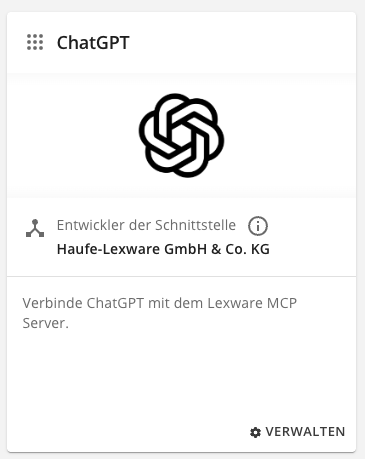
You can revoke an MCP connection's access at any time. Open https://app.lexware.de/addons/ and click Verwalten on the respective add-on, e.g. ChatGPT. This takes you to the connections of the specific client, where you click Verbindung trennen.
Confirmation of Write Actions
Tools that create, change or finalize data are marked with Write in Available Tools. MCP hosts should surface these to you for confirmation before calling them, particularly anything that finalizes a document, since a finalized document can no longer be edited via the MCP server in a prompt. Always review what the assistant is about to do before confirming a write action.
Data Handling
Tool calls read and write Lexware Office data: contacts, invoices, quotations and vouchers. This includes personal data of your customers and business partners, such as names and address data. The results of every tool call are returned to your MCP host (e.g. Claude Desktop) and from there to the LLM provider behind it. This transfer takes place at your instruction, because you decide to connect the host to your Lexware Office account.
Before connecting a host, make sure that its use is covered by your own data protection obligations, for example your privacy notice and a data processing agreement with the provider. Only connect hosts you trust with the data in your Lexware Office account, and review which data an assistant is about to read or write before confirming an action.
Rate Limiting
The MCP Server allows a maximum of 2 tool calls per second. If the limit is exceeded, the server responds with HTTP status code 429 and the tool call is not executed. The limit values are not exposed in the response.
You do not need to do anything about this: the MCP client (e.g. Claude) is expected to handle the rate limit itself, for example by retrying a call that was answered with 429 after a short wait. Just keep sending your prompts.
Known Limitations
The following use cases are not supported by the MCP Server yet.
- File Upload: Uploading files (e.g. attaching a receipt or document to a voucher) is not implemented yet. Instead, the KI assistant will give you the link to the Lexware upload area, where you can upload the file manually.
- Contacts: Contacts cannot be deleted. Contacts with multiple addresses or contact persons cannot be changed via the MCP Server.
- Finalizing drafts: An existing draft cannot be finalized afterwards. A document can only be finalized when it is created.
- Changing and deleting documents: Invoices, quotations, order confirmations, delivery notes and credit notes can neither be changed nor deleted via the MCP Server. Bookkeeping vouchers cannot be deleted either.
Troubleshooting & FAQ
My Prompt Didn't Trigger Any Tool
You cannot invoke a tool by its name directly, describe what you want to achieve (e.g. "create an invoice for ..."), and your host matches it to the right tool. See Available Tools for what you can ask for.
If your host asks for approval before using a tool (Genehmigung erforderlich), the tool only runs after you have confirmed it. Some hosts also require the Lexware connector to be enabled for each conversation.
My Host Doesn't Show Any Lexware Tools
- Check that the server URL is exactly
https://app.lexware.de/mcp. - Restart your host. Many hosts only refresh the list of tools on startup.
- Complete the login once. Without a valid connection, the host cannot load the tools.
- Open the page Erweiterungen (https://app.lexware.de/addons/) and activate the toggle Zeige nur meine Erweiterungen to see only your active connections. If the connection is listed, revoke the connection and also remove the connector in your host and add it again.
My Host Doesn't Show Any Updates on the Lexware Tools
- Start a new chat invoking a Lexware tool. Many hosts only refresh the list of tools when a tool is invoked.
- The Lexware MCP server is stateless. It doesn't keep a session between requests, so it cannot notify your host about changes to the available tools. Your host only picks up changes when it requests the list of tools again.
The Login Window Doesn't Finish
- Disable pop-up blockers for the login and consent windows.
- Retry in a new browser tab or in a new incognito browser tab.
- If the problem persists, remove the connection as described in Revoking Access and connect again.
Getting HTTP Status Code 401
A 401 Unauthorized means the token was rejected because it is inactive, expired or revoked (see Token Validation). The access token is only valid for 5 minutes and is renewed by your host automatically. If the refresh token has expired or the access was revoked, invoke any Lexware MCP tool with a corresponding prompt to trigger the browser authentification flow again.
I Cannot Connect My AI Chatbot to the Lexware MCP Server
- Missing contract: Without the Lexware Office XL contract, no connection to the MCP server is possible at all and every tool call is rejected. You can change your contract on the page Vertrag.
Getting HTTP Status Code 429
You exceeded the limit of 2 tool calls per second, and the tool call was not executed. Your host is expected to retry it after a short wait. See Rate Limiting.
My Assistant Cannot Do What I Asked
Some actions are not supported by the MCP server yet, e.g. deleting contacts, changing invoices or finalizing existing drafts. See Known Limitations for the complete list.
Still Stuck?
Contact Lexware support.
Change Log
Change log of the Lexware MCP Server
MCP Server Changes
- 10.11.2026 - Initial release of the MCP server, with documentation for available tools, configuration, and setup.
Disclaimer
Tool changes, especially breaking changes, will be documented in the Change Log.